Aivo for Teams · Practical guide
How to run a voice-typing pilot with Aivo for Teams
Start with two people and one routine writing task. Compare the time it takes to produce a checked draft, including corrections, then decide where voice typing belongs in your working day.
Evaluating for a public-sector workplace? Go to the requirements and comparison worksheet.
A small pilot can answer a useful question: would you and a colleague actually choose to dictate this kind of message? The aim is to find the tasks where voice helps and the ones where editing gets in the way.
This guide uses a scheduling email. You can adapt the same exercise to a project update or your own next-step note, in Danish, Norwegian Bokmål, Swedish, Finnish, Icelandic or English.
Aivo for Teams lets an owner invite colleagues and manage company billing, while each person has their own Aivo account and personal writing tools.
1. Choose one task and a clear finish line
Pick a short message you write often. Agree on the facts it must contain, who it is for and when you would consider it ready. For a scheduling email, that means the right name, day, time and request, in a tone you would use yourself.
Fictional practice example · not a measured transcript
Hi Anna, would Thursday at ten work for a short planning session? Please send the agenda beforehand so I can prepare my questions.
For this exercise, use invented names and ordinary administrative content. A law firm could try a training invitation, an investment team an internal planning email, a banking team a rota update, and a healthcare team a teaching invitation. Keep client, deal, account and patient information out of the test.
Each person dictates their own draft.
2. Understand the trial before starting its clock
The published Aivo for Teams trial is for 14 days and 2–5 people, including the owner. Two places are selected by default. No card is required, and the trial does not automatically turn into a paid subscription.
- 60 dictation minutes per person for the whole trial, not per day.
- 250 AI text-processing actions per person for the whole trial. Automatic cleanup and language normalization count when used, as do applicable rewriting actions.
- Five minutes maximum per recording. Longer recordings are rejected rather than shortened.
- One shared company end date. Joining later does not give someone a fresh 14 days. Each person’s trial Pro ends when either allowance runs out or the company trial expires, whichever comes first.
The allowance includes attempts sent for processing, even if the provider returns an error. Requests rejected before processing do not use it. One trial is available per company and Aivo account, with at most five distinct participants; leaving and rejoining does not reset usage. Read the full trial terms before you start.
3. Set up the owner and one colleague
- Prepare both people first. Install the current app on the devices you intend to use. Choose a language, check the microphone and text-insertion permissions, and review the cloud-processing choice. Aivo needs an internet connection.
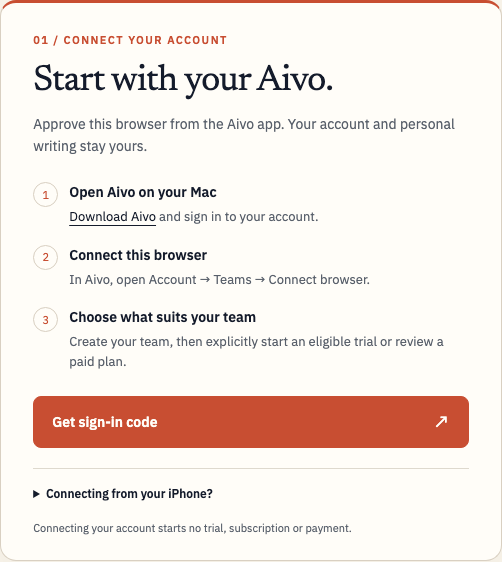
- Connect the owner’s account. Use Aivo on Mac to connect a browser you control to the Teams console. Check that the console shows the intended Aivo account.
- Review and start the trial. Select the company, choose two trial places including yourself, review the limits, and explicitly confirm the trial start. Creating a company or opening the trial link does not start the clock.
- Invite your colleague privately. Once the trial is active, create and share the invitation directly. Aivo does not email it automatically. Each person joins with their own Aivo account.
Use the setup and joining handbook for the exact steps. If an older app does not accept a branded invitation link, the console provides an invitation code. Treat links and codes as private credentials.
Active company access can cover iPhone and Mac when the person uses the same Aivo account. Personal dictionaries and snippets remain individual. If company access is missing, check the account and ask support before buying another subscription.
4. Run a few comparable writing tasks
On your first day, let each person practise with an unscored draft. Add a fictional name to their personal dictionary if it is useful, and check that text appears in the chosen app. On iPhone, secure fields or apps that block third-party keyboards may use the system keyboard instead; on Mac, protected fields can restrict insertion.
Over the next few working days, try three pairs of similar messages per person. In each pair, write one by your usual method and one by voice. Keep the language, device, app and task complexity comparable. Alternate which method goes first.
Use different but equivalent messages so the second attempt is not simply a memorised rewrite. Start timing when you begin composing and stop when the draft is checked and ready to use. Include recording, processing, insertion and editing. Record initial setup and any troubleshooting time separately.
Review names, dates, numbers and meaning in both versions. A fluent sentence can still contain the wrong appointment time. Stop at a checked draft; you do not need to send the practice email.
5. Keep a small, honest evaluation log
Copy this blank log for each pair of tasks. Keep timings and edit counts rather than the message text. You can count each name, date or wording change as one correction; agree on the rule before you begin.
| Person | Method | Total time | Corrections | Would use again? |
|---|---|---|---|---|
| A | Usual method | — | — | — |
| A | Voice | — | — | — |
| B | Usual method | — | — | — |
| B | Voice | — | — | — |
Blank worksheet, not customer results. Also note the device, app, language and any interruption.
A few personal trials can guide your own decision. They do not establish a general accuracy rate or a saving for every employee. If voice takes longer on one task, record that too.
6. Decide what to keep
Review the results together before the trial ends or someone reaches an allowance. Ask which tasks felt easier, how much correction was needed, and whether either person would choose voice without a reminder. A good outcome may be one person dictating routine updates while the other prefers typing them.
Keep the work context in view. Aivo uses cloud processing: review the Teams data-handling guide, privacy policy and your workplace’s requirements. Local history settings do not change cloud processing or provider retention.
What happens when the trial ends?
There is no automatic charge or paid conversion. Basic and independently paid access continue under their usual terms. To continue with company-paid access, the owner makes a separate choice in checkout.
Paid Teams plans require at least two seats, including the owner. Your saved company country determines the offer and currency. Review the full total, seat count and billing interval before paying: monthly is the default; annual billing is optional and paid upfront. See current Teams prices and the billing handbook.
If you move to paid access during the active trial window, checkout must cover the trial capacity you chose, even if not everyone has joined. Joining Teams does not cancel or refund a personal Apple or Stripe subscription; review those renewals separately.
Evaluate voice typing for a public-sector workplace
The same small test can help a municipality, public healthcare organization or education provider decide which writing tasks suit Aivo. Start with a requirements check, then compare the experience. Keep the pilot limited to fictional, non-sensitive material until your organization has approved the intended workflow.
Check mandatory requirements first
Ask the people responsible for IT, information governance, accessibility and purchasing to agree what must be demonstrated. A good usability score cannot make up for a mandatory requirement that is not met.
- Devices and deployment: check the actual Mac and iPhone versions, microphone and insertion permissions, compatible fields and any managed-device restrictions. Ask how installation and updates fit your MDM process; do not assume it is supported. Windows is currently an unsigned testing distribution, not a production deployment option. If a task depends on a remote desktop or a protected application, test that approved setup explicitly.
- Accounts and offboarding: test the intended invitation and sign-in route, who administers access, and what happens when a colleague leaves. Microsoft Entra sign-in is optional and needs company setup and compatible apps. It does not establish enforced SSO or automatic directory provisioning. Removing membership is separate from deleting content on devices or in exported files.
- Information handling: review the intended data, provider and processing information, retention, transfers, permissions and any required agreements with your organization's reviewers. Approval of a workflow and language-quality testing answer different questions. Local history choices do not establish EU-only processing or zero provider retention.
- Accessibility in the real task: let intended users test the keyboard, microphone, screen reader or other assistive technology they use, in the approved environment. Record barriers and support needed. A Mac Accessibility permission is an operating-system setting; it is not evidence of accessibility conformance.
Choose a fictional task for each group
These are intended practice inputs, not transcripts or measured results. Adapt their complexity to the real writing task while keeping people, cases, patients and pupils out of the exercise.
Public administration
Move the planning meeting to Tuesday at 10:30 in the Nordlys room. Do not send the revised invitation until the agenda is approved.
Check the room name, Tuesday, 10:30 and the approval condition.
Healthcare administration
The fictional staff training session starts on Thursday at 13:15 in room B. Bring the draft timetable. Do not add patient information.
Check Thursday, 13:15, room B and the instruction to leave patient information out.
Education and accessibility
The staff workshop starts on Monday at 09:20. Send the outline as an editable document. Do not publish any pupil names.
Check Monday, 09:20, the editable-document request and the instruction about names. This is writing practice, not an accessibility-benefit claim.
Compare complete, checked work
Agree the acceptance criteria before timing: intended meaning, names and terminology, numbers and dates, negation and conditions, and the selected writing language. Use the paired-task method above, with one unscored practice attempt and equivalent messages. Alternate which method goes first. Keep the device, app, language and task difficulty comparable. Count corrections by the same rule for both methods and time from starting composition to a checked draft, including processing, insertion and editing. Record setup, interruptions and assistance separately.
Keep requirements separate from usability scores
Mark each mandatory requirement as met, not met or awaiting evidence before considering a rollout. For tasks that pass that check, agree any usability scale and weighting in advance. Keep each person's results and unsuccessful attempts; do not average away a barrier that prevents someone doing their work.
| Task / language | Method | Required facts retained? | Corrections | Checked-draft time | Usability score |
|---|---|---|---|---|---|
| — | Usual method | — | — | — | — |
| — | Voice typing | — | — | — | — |
Record the task and language, then fill the actual result cells yourself. Note which names, numbers, negations or conditions needed repair. This small evaluation informs your own decision; it does not establish a general accuracy rate or time saving. A threshold for one buyer is not a universal tender requirement.
Keep the Teams trial and a Notetaker pilot distinct
The ordinary Teams trial described above remains a 14-day trial for 2–5 people, with 60 dictation minutes and 250 AI text-processing actions per person over the trial and a five-minute maximum per recording. It does not automatically enable company Notetaker pilot features. If meeting notes are also in scope, arrange a separate enabled Mac company pilot and check its current terms. Source-linked Summary review, approval and Word/PDF exports, and Scribe speaker labels belong to that gated workflow. Current public Notetaker is a Mac feature. Evaluate recording permissions, source accuracy and reviewed summaries separately from this voice-writing test.
Use the procurement information pack to collect evidence and the public-sector overview to discuss the intended use. The existing data-handling guide and privacy policy remain the starting points for processing questions.
Public-sector evaluation annex checked 19 November 2026 against the current Teams handbook, public Mac release and Notetaker scope, trial terms and privacy information. Tasks, criteria and blank worksheets are original evaluation suggestions, not customer findings, accessibility certification or a procurement approval.
Start with two people and one draft
Choose your colleague and practice task before starting the trial. Then use the time to find a writing habit worth keeping.
Opening the console does not start the trial. Need help? Email team@aivolabs.eu. For a concrete writing example, see our Danish guide to longer iPhone messages.
Sources and checked date
Product terms and setup checked on 19 November 2026 against the Teams offer, setup handbook, trial terms, data-handling guide and privacy policy. The task, worksheet and evaluation method are editorial suggestions. They are not a benchmark or a customer case study.