Aivo for Mac

Your voice, at home on Mac.

Turn a thought into an email, a message or a note. Dictate in Danish, Swedish, Norwegian Bokmål, Finnish, Icelandic and English in compatible Mac text fields.

Free Basic plan · macOS 13+ · Universal app

Give your keyboard a break.

  1. Download the DMG and drag Aivo into Applications.
  2. Open Aivo and allow microphone and Accessibility access.
  3. Hold Fn to dictate. Double-tap Fn for hands-free use. If Fn is unavailable, press Control + Shift + A to start or stop.
  4. Review the inserted text before sending.

Your words. Your setup.

Add names and specialist terms to your dictionary. Use snippets for repeated phrases. Pro modes help shape grammar, tone and structure.

macOS 13 or later · Apple Silicon & Intel

Transcription requires an internet connection. Some protected fields or apps may restrict text insertion.

In Aivo for Mac 1.0.25 · macOS 15+

Aivo Notetaker

Meetings and computer calls. Recorded in Aivo, ready to review in your own words.

AI-generated photograph of colleagues talking around a table in a bright Nordic office.
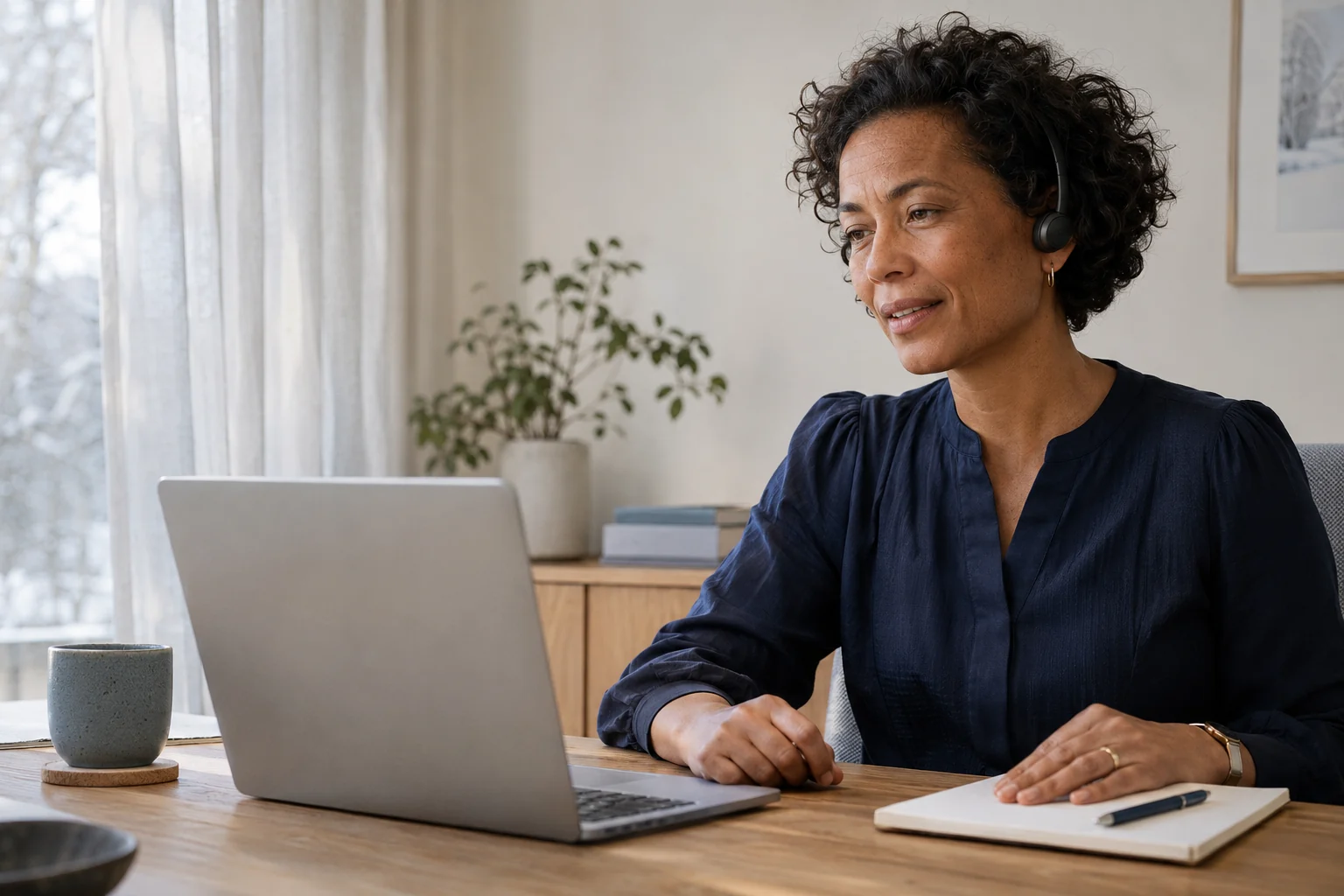
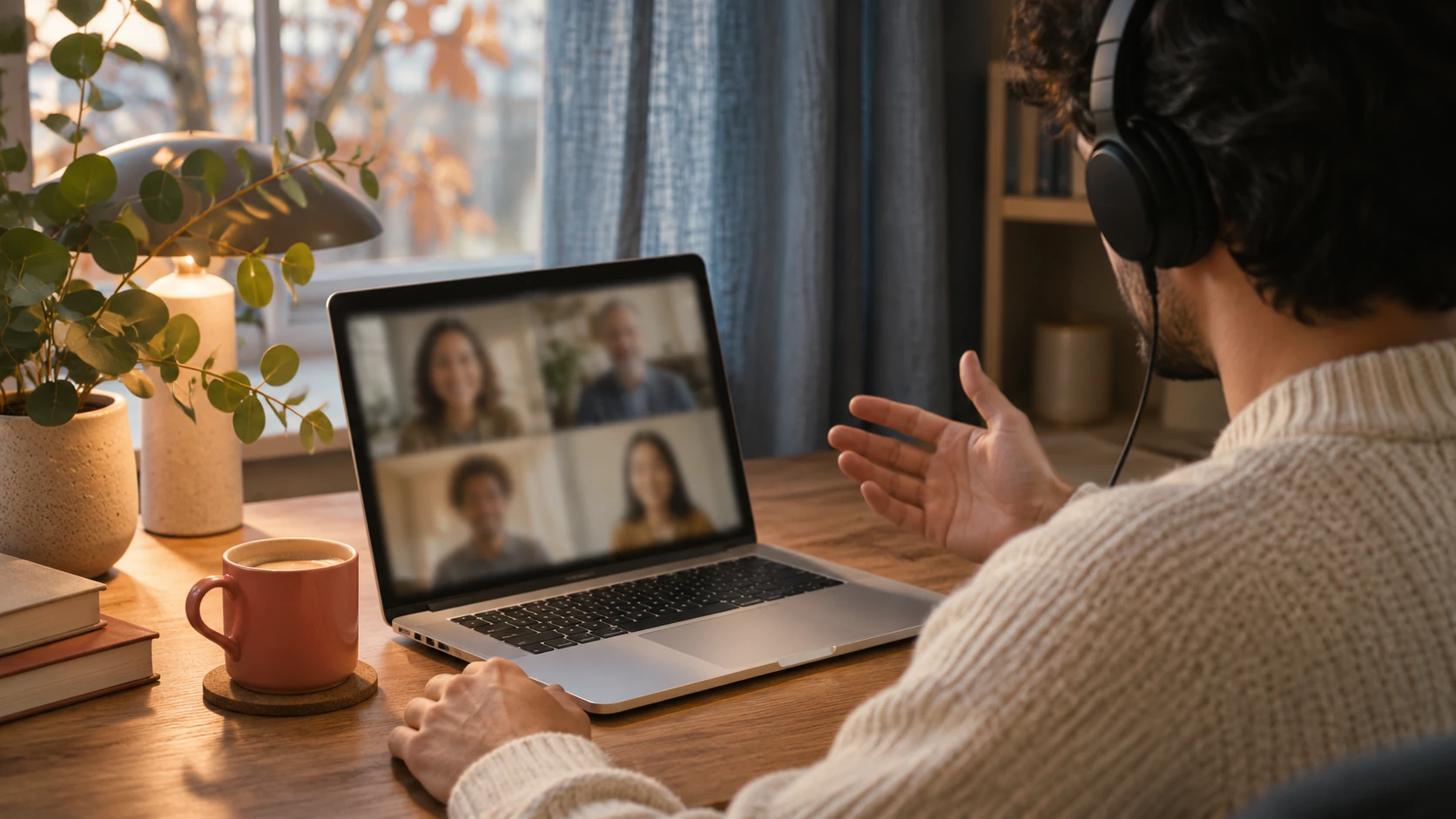
AI-generated photograph of a person taking a computer call at a desk.

Around a table. Across a screen.

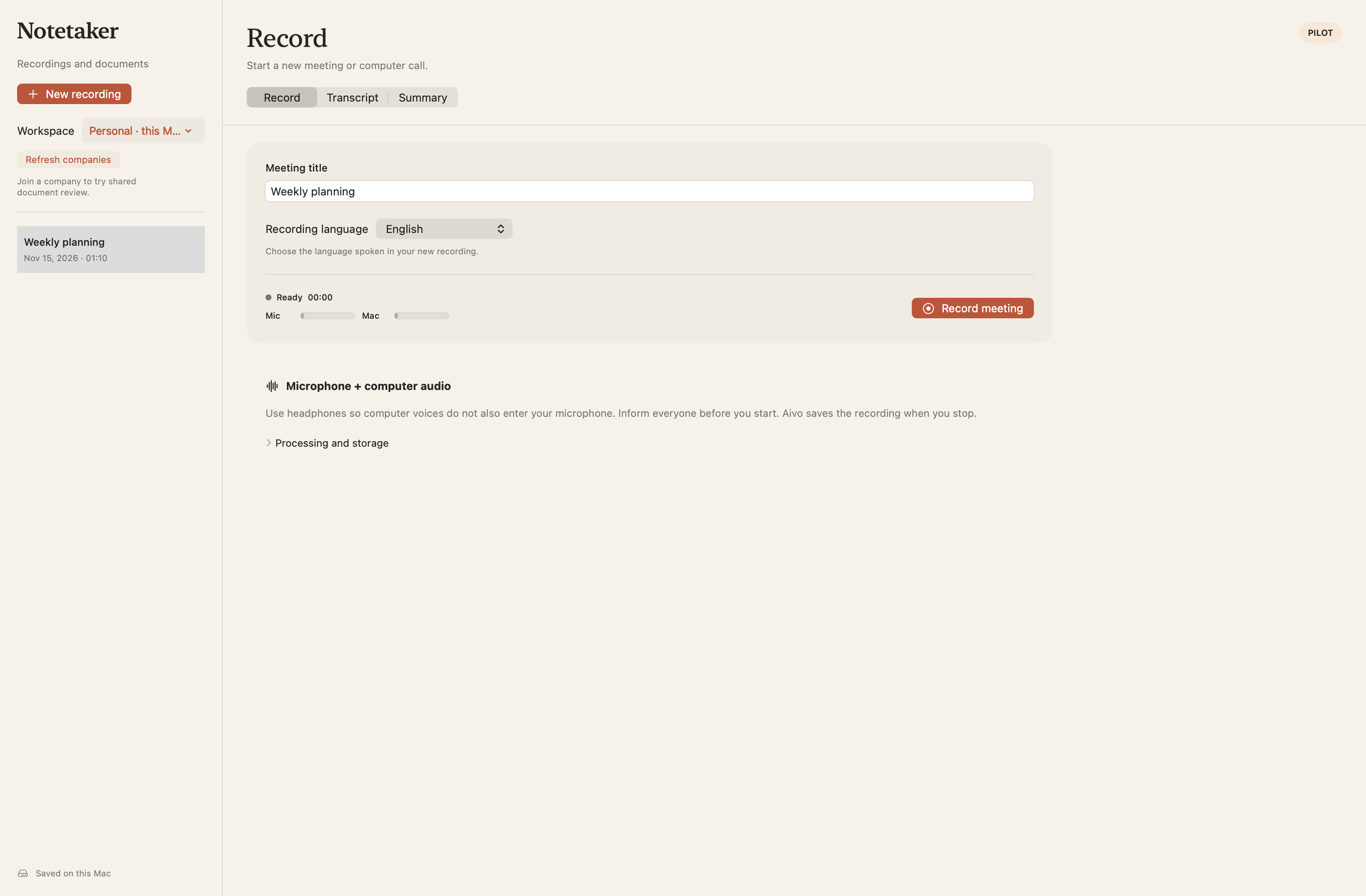
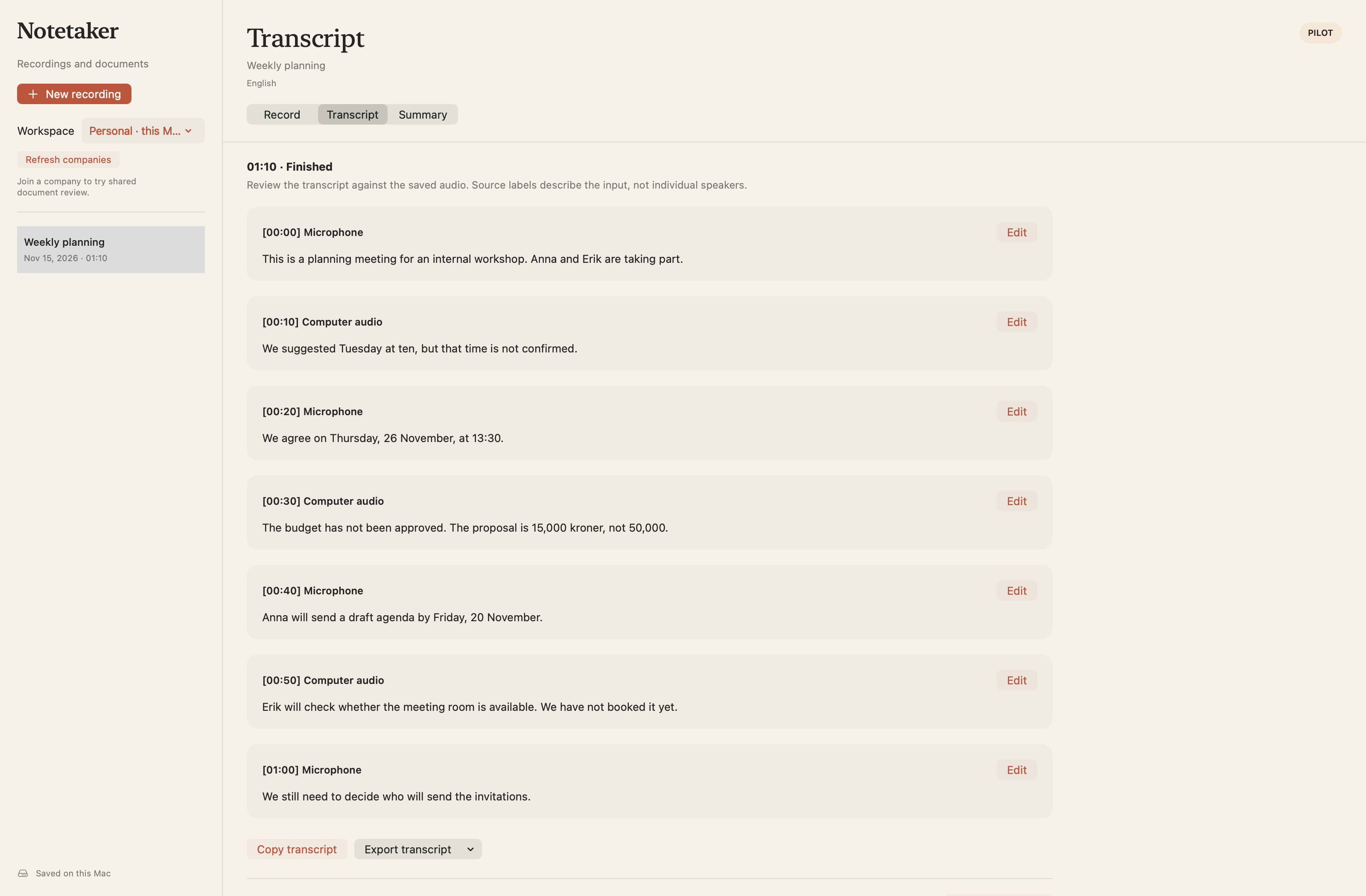
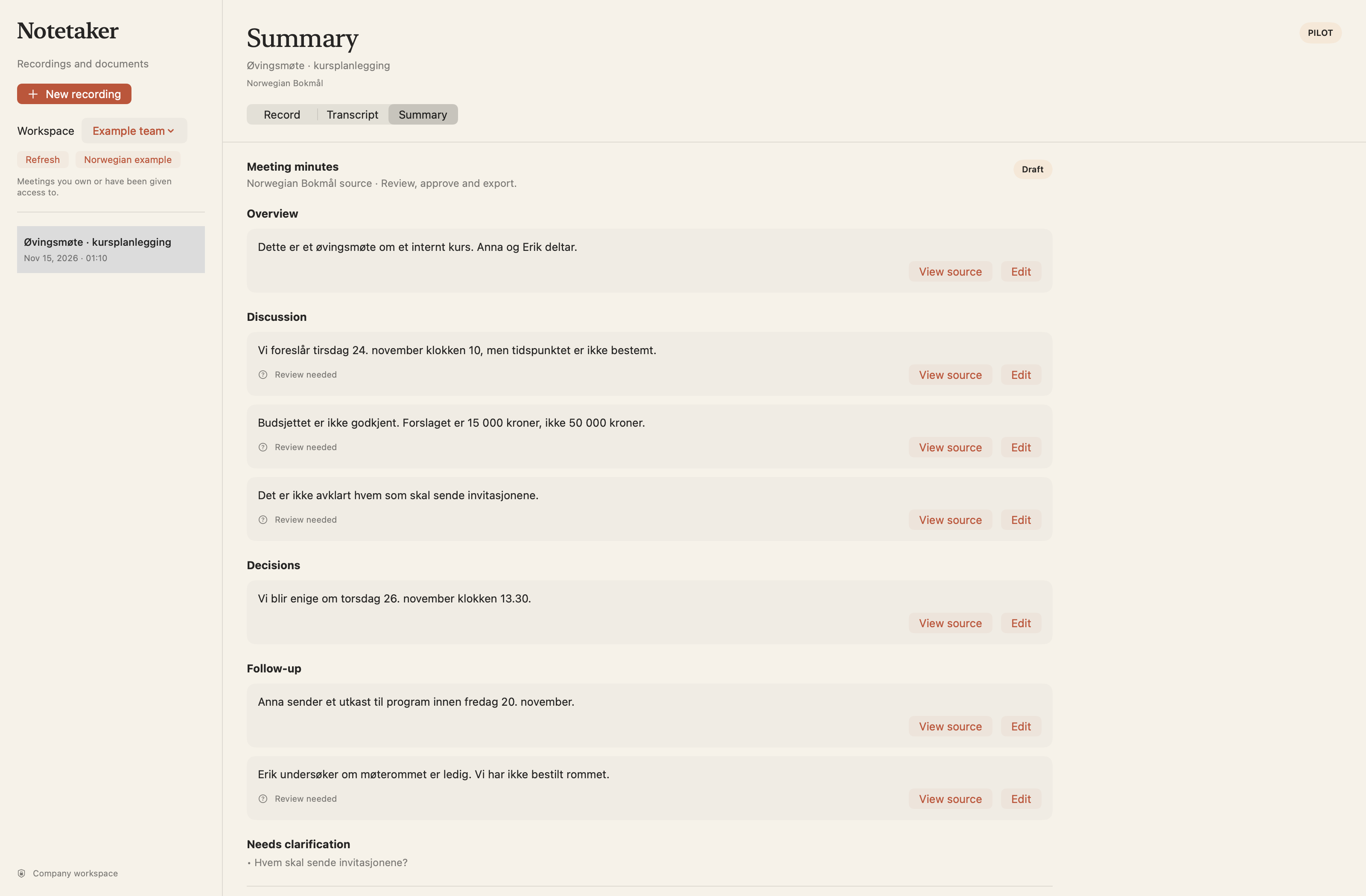
AI-generated scene photography. Aivo app screens with sample content.

01 · Record

Capture the conversation.

Record your microphone and computer audio. Stop when the conversation ends, then choose when to transcribe.

02 · Transcript

Read what was said.

Transcribe your saved recording with OpenAI, review the text and export the transcript as TXT or Markdown.

03 · Summary

Make a draft you can check.

In enabled company pilots, create a summary, review its sources and export the approved version.

Available to signed-in Mac users. Cloud transcription uses OpenAI with your permission and your account’s processing limits. Summary drafting and speaker labels are limited to enabled company pilot workspaces.

The Notetaker guides

Make more of your meeting notes.

AI-generated scene photography.

FAQS

You might be wondering.

Answer

How reliable is an Aivo meeting transcript?

Aivo transcribes your saved recording and lets you review and correct the wording before you use it. Clear voices and a well-placed microphone help; background noise, overlapping speech, names and technical terms can still need correction.

Check important names, numbers, dates and decisions against the recording. In enabled company pilots, summary drafts include source references so you can check the draft against the transcript.

Can Aivo show who said each part?

Speaker labels are currently available only in enabled company pilot workspaces. There, ElevenLabs Scribe assigns recording-specific labels such as Speaker 1 and Speaker 2. You can review or rename them and correct a passage’s speaker assignment.

The labels do not identify people automatically. Standard personal transcripts distinguish microphone and computer-audio sources rather than identifying each participant.

Which meeting and calling apps can I use?

On a supported Mac, Notetaker captures your microphone and the computer audio that macOS allows Aivo to record. Start it yourself alongside your meeting or computer call, including a call in Microsoft Teams.

Allow the required microphone and system-audio permissions. Audio capture can vary by app or protected content, so make a short permitted test before relying on a particular setup.

What should I tell people before recording?

Tell everyone that you plan to record and transcribe the conversation, and obtain the permission required for that meeting and your workplace. Aivo records from your Mac; it does not add a visible participant to the call.

You choose when recording starts. Cloud transcription is a separate action with a sharing prompt, so check that you are allowed to send that recording for processing as well.

Read the privacy policy

Can I use the transcript in another AI tool?

You can copy a reviewed personal transcript or export it as TXT or Markdown, then use the text in a tool you choose. Check the content before sharing it and follow your workplace’s approved process.

The current Notetaker release has no built-in MCP connector or AI chat across your meeting history. Enabled company pilots have a separate Summary action inside Aivo.

Will it capture a face-to-face meeting?

Yes. Aivo can record the conversation through your Mac’s microphone. Place the Mac or a suitable microphone where voices can be heard clearly, select the recording language and start Notetaker before the discussion begins.

Try a short recording first to check microphone placement. Review the finished transcript, especially when people interrupt each other or speak at the same time.

Does the meeting need to be on my calendar?

No calendar event is needed. Open Notetaker, choose Record and start the recording yourself. Stop when the conversation ends, then choose when to transcribe the saved audio.

The current release does not join calendar meetings or start recording automatically. Keep Notetaker selected inside Aivo while recording. Switching to another section inside Aivo stops and saves the recording.

How is Notetaker different from Aivo dictation?

Dictation turns your own spoken words into text where you are writing an email, message or note. Notetaker saves microphone and computer audio from a conversation so you can transcribe it, review the text and export the transcript later.

Both use the same Aivo app and account. Meeting recordings live in a separate Notetaker library; summary drafting is currently limited to enabled company pilot workspaces.

Can I bring notes from another notetaking app?

The current release does not import meeting libraries from other notetaking apps. Keep any recordings, notes and exports you need from your previous service before changing how you use it.

Updating Aivo preserves recordings already saved in Aivo, along with your settings, dictation history and word totals. Your existing recordings remain separate from anything stored in another application.

Where do recordings go, and can I delete them?

Personal recordings and transcripts stay on this Mac until you delete the meeting. Recording alone does not upload personal audio; choosing transcription shares the saved audio with OpenAI.

Enabled company pilots sync recordings to protected company storage when you stop. Speaker transcription may use ElevenLabs; Summary separately uses OpenAI. Processing is global. Deleting a record does not recall exports or override provider and backup retention. The dictation-history setting does not delete meeting recordings.

Privacy policy · Company pilot privacy notice

What access and allowances does Notetaker use?

Use your existing Aivo account for Notetaker. Cloud transcription uses your plan’s processing allowances and limits. The Teams trial currently allows up to five minutes per recording.

A subscription or trial does not automatically enable the company-pilot features. Summary drafting and speaker labels need an enabled company workspace. Existing subscription prices are unchanged.

See current plans · Ask about a company pilot

Which recording languages can I choose?

Notetaker supports Danish, Norwegian Bokmål, Swedish, Finnish, Icelandic and English. Choose the language spoken in the recording before you start.

Review names, specialist vocabulary and passages where languages are mixed. The quality of a particular recording can depend on the voices, microphone placement, background sound and overlapping speech.

Where is Aivo Notetaker available?

Notetaker is available in Aivo for Mac 1.0.25 or later and requires macOS 15 or later. It works inside the same Mac app and signed-in account you use for dictation.

Aivo dictation remains available on supported versions of macOS 13 and later. Meeting recording in Notetaker is not currently available in Aivo’s iPhone or Windows apps.

Start free. Choose Pro when you need more.

Basic includes 1,000 words per week. New Mac Pro subscriptions are billed monthly through Stripe: Denmark 79 DKK, Norway 99 NOK, Sweden 99 SEK, Finland €9.99 and Iceland 1,450 ISK. The euro-area Mac price is €9.99/month. Checkout confirms your currency and amount before payment. Existing subscribers keep their current price and currency. Pro adds unlimited dictation subject to fair-use limits, writing modes and custom modes.

See pricing and billing details →

Already subscribed on iPhone?

Sign in with the same Apple account. If Pro is missing, contact support before buying another subscription.

Audio and privacy

Your audio is sent to our transcription provider over an encrypted connection. Writing modes also send text for processing. Recent history can be stored locally. In the updated Mac app, Settings → Privacy and history → Don’t save new history stops new recent history and the last-result buffer. Existing history and earlier recovery archives remain until separately removed. Check the privacy guide for release status and full limits. Read the privacy policy.

Need a hand with setup?

Open Settings in Aivo to check microphone and Accessibility permissions. If the Fn shortcut cannot be intercepted, use Control + Shift + A. Email team@aivolabs.eu if you need help.