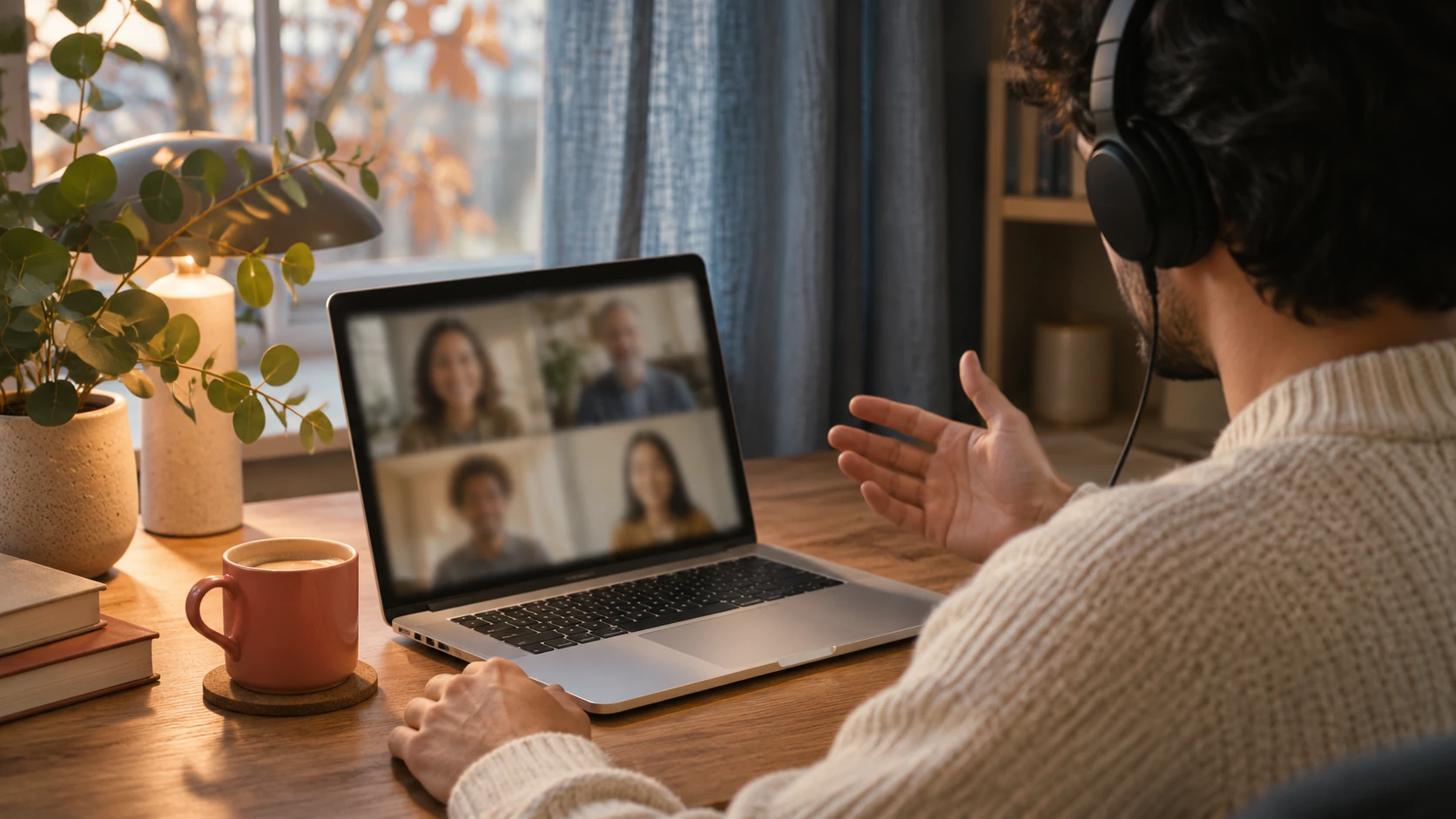
Start with the room and the people
Three colleagues can leave a planning meeting with a date, a budget and several tasks. Aivo Notetaker keeps the audio available to check what was agreed.
Use the current Aivo Mac app, sign in and open Notetaker. Recording requires macOS 15 or later. This guide covers the Mac workflow; Notetaker is not currently available in Aivo’s iPhone or Windows app. Internet access is needed for cloud transcription.
Before recording, explain why you want a record, who will receive it and whether the audio will be sent for transcription. Inform everyone and obtain the permission your meeting requires. For work, use an approved workflow. If recording is unsuitable, take ordinary notes instead.
Give every voice a fair chance to be heard
Put the Mac where it can hear the whole table. Keep its microphones clear of papers and bags, away from fans or an open doorway. A microphone beside the chairperson may miss someone at the other end.
Before the first important meeting, make a short, agreed test from the actual seats and listen back. If distant voices are hard to understand, move the microphone or try a suitable conference microphone. Equipment is worth testing in the room; buying a microphone does not guarantee a good transcript.
Ask people to avoid talking over a decision. Repeat an important amount or deadline clearly when it is agreed. These habits also make the discussion easier for the people attending.
Record: capture the conversation on your Mac
Aivo captures microphone and computer audio. In a face-to-face meeting, the microphone is what hears the room. Close unrelated audio. For a hybrid meeting on the same Mac, test the remote audio as well and follow the headphone guidance where appropriate to avoid recording an echo. Aivo does not join the meeting automatically.
- Step 1
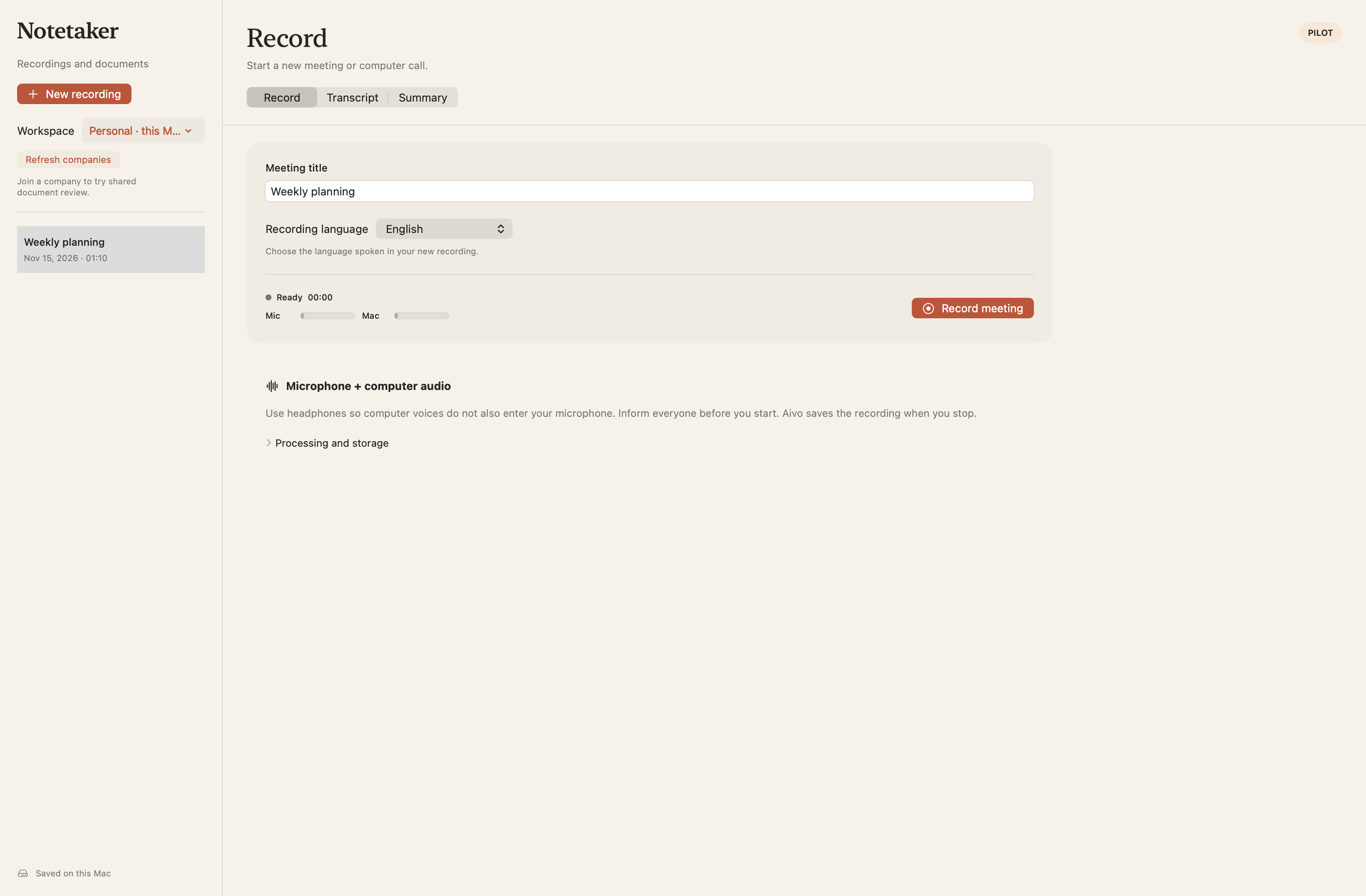
Open Notetaker and choose New recording. Use your personal space, or the intended company workspace if you have access.
- Step 2
Give the recording a useful title and choose the spoken language. Aivo offers Danish, Norwegian Bokmål, Swedish, Finnish, Icelandic and English.
- Step 3
Review the recording notice and start when everyone is ready. Check that the microphone meter responds and the timer advances.
- Step 4
Stop at the end and keep the saved recording for review. Leave Notetaker selected inside Aivo while recording: switching to another section of Aivo stops and saves it.
Transcript: check the details that change the meaning
After stopping, choose to transcribe and review the sharing notice. Personal transcription sends the saved audio and selected language through Aivo to OpenAI. Recording in your personal space alone does not upload the audio. Processing uses your account’s applicable allowance.
Read the result with the audio available. Correct names, amounts, dates and words such as “not”. Use Listen to check an unclear passage and edit the transcript instead of guessing what was meant. A fluent sentence can still carry the wrong decision.
Practice example · course planning: “Tuesday was proposed, but we agreed Thursday at 13:30. The budget is 15,000 kroner and has not been approved. Anna will send the programme draft on Friday.”
Check all three points separately: Thursday rather than Tuesday, 15,000 rather than a similar-sounding amount, and a budget that is still awaiting approval.
For a personal recording, you can copy the checked transcript or export TXT or Markdown. Keep the next actions easy to find in the version you share.
Summary: available in enabled company workspaces
The Summary stage adds a structured draft in company workspaces enabled for the Notetaker pilot. Speaker-labelled transcription is also limited to enabled workspaces. These features are not automatically included for every Teams subscriber.
If your workspace has access, review Speaker 1, Speaker 2 and other labels against the recording. They distinguish voices within that recording; they do not identify people automatically. Then create the summary. This is a separate action that sends transcript text to OpenAI.
Check the draft’s source references, decisions, tasks and uncertainties. Save corrections, complete the review and approve the version before exporting the approved document as Word or PDF. A proposal must remain a proposal, and an unassigned task must not acquire an invented owner.
Before you share the result
- Everyone was informed and the recording was permitted.
- Names, dates, numbers and negations match the audio.
- Decisions are separate from suggestions and unresolved questions.
- Tasks have only the owners and deadlines actually agreed.
- The recipient and export location are appropriate for the content.
Know what stays saved
Personal meeting audio and transcripts remain on your Mac until you delete the meeting. Turning off normal dictation history does not delete them. Meeting transcripts do not increase your normal dictation history or lifetime word count.
Company recording and processing follow a different workflow. Read Processing and storage in the app, the privacy policy and, where relevant, the Notetaker pilot notice before using it. The current processing route does not carry an EU-only guarantee. Deleting a meeting does not recall exported files or override provider and backup retention.
Start with a short, non-sensitive planning meeting. Make one checked transcript, then decide how recording fits into your team’s routine.
Questions about this workflow
Can I record an in-person meeting without a video call?
Yes. Aivo Notetaker records the microphone on your Mac, so no video call is needed. You start recording yourself, after informing participants and obtaining the permission required.
Does every Aivo account include speaker labels and summaries?
No. Personal recordings support transcription, editing and TXT or Markdown export. Speaker-labelled transcription, structured Summary drafts and approved Word or PDF exports are currently limited to company workspaces enabled for the Notetaker pilot.
Sources and review
Reviewed 18 November 2026