Start with a short audio check
Use Aivo 1.0.25 or later on macOS 15 or later for Notetaker. Sign in, open Notetaker and select Record.
Before relying on a new setup, arrange a brief test with someone who agrees to be recorded. Use harmless sample sentences. Let each person speak separately, then check that the saved recording contains both voices. Audio routing, permissions and protected content can affect what macOS makes available.
Set up Zoom and Aivo before the conversation
Keep Notetaker selected inside Aivo while recording. You can return to the Zoom call; switching to another section inside Aivo stops and saves the recording. Start and stop each meeting deliberately so unrelated conversations do not become part of the same file.
- Choose the audio devices
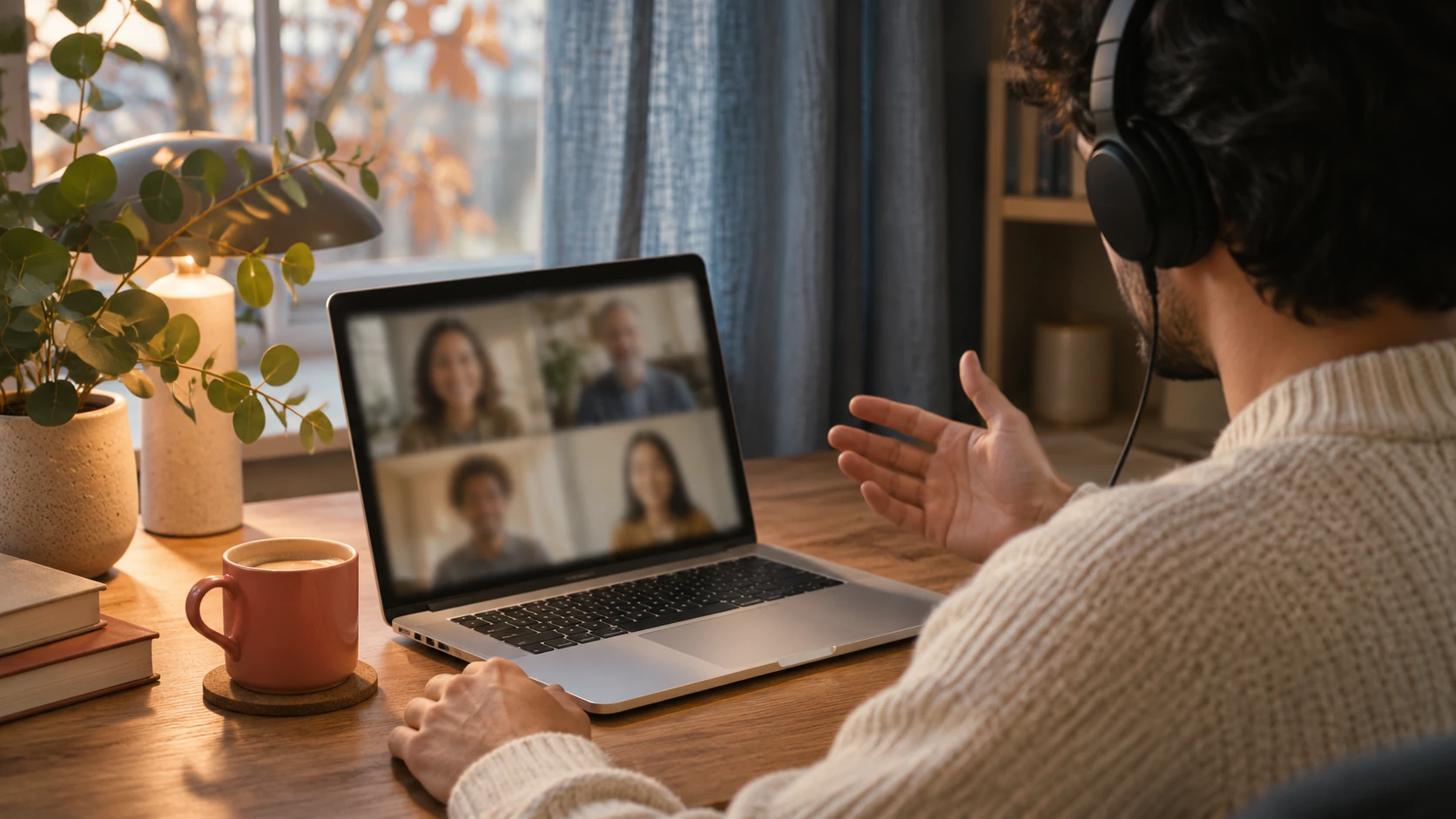
In Zoom’s Audio settings, test the microphone and speaker you intend to use. Wear headphones so the other person’s voice does not also enter your microphone and create a duplicate capture.
- Allow the Mac permissions
Give Aivo the microphone and system-audio access it requests. You can review recording access in System Settings → Privacy & Security. Zoom’s microphone permission is separate; permission for one app does not authorize the other.
- Tell the participants
Explain what you will record and how you will use it, and obtain the permission your meeting requires. Aivo does not post a recording notice in Zoom chat for you. Follow your organization’s approved workflow.
- Name the recording and start it
In Aivo, choose the recording language and click Record meeting. Start before the discussion you need to capture. No calendar connection or extra bot attendee is part of this workflow.
Stop, save and turn the audio into text
When the conversation finishes, return to Aivo and choose Stop & save. Recording and transcription are separate actions. In a personal workspace, recording alone does not upload your audio. Select the saved recording, choose transcription and review the OpenAI sharing notice before continuing.
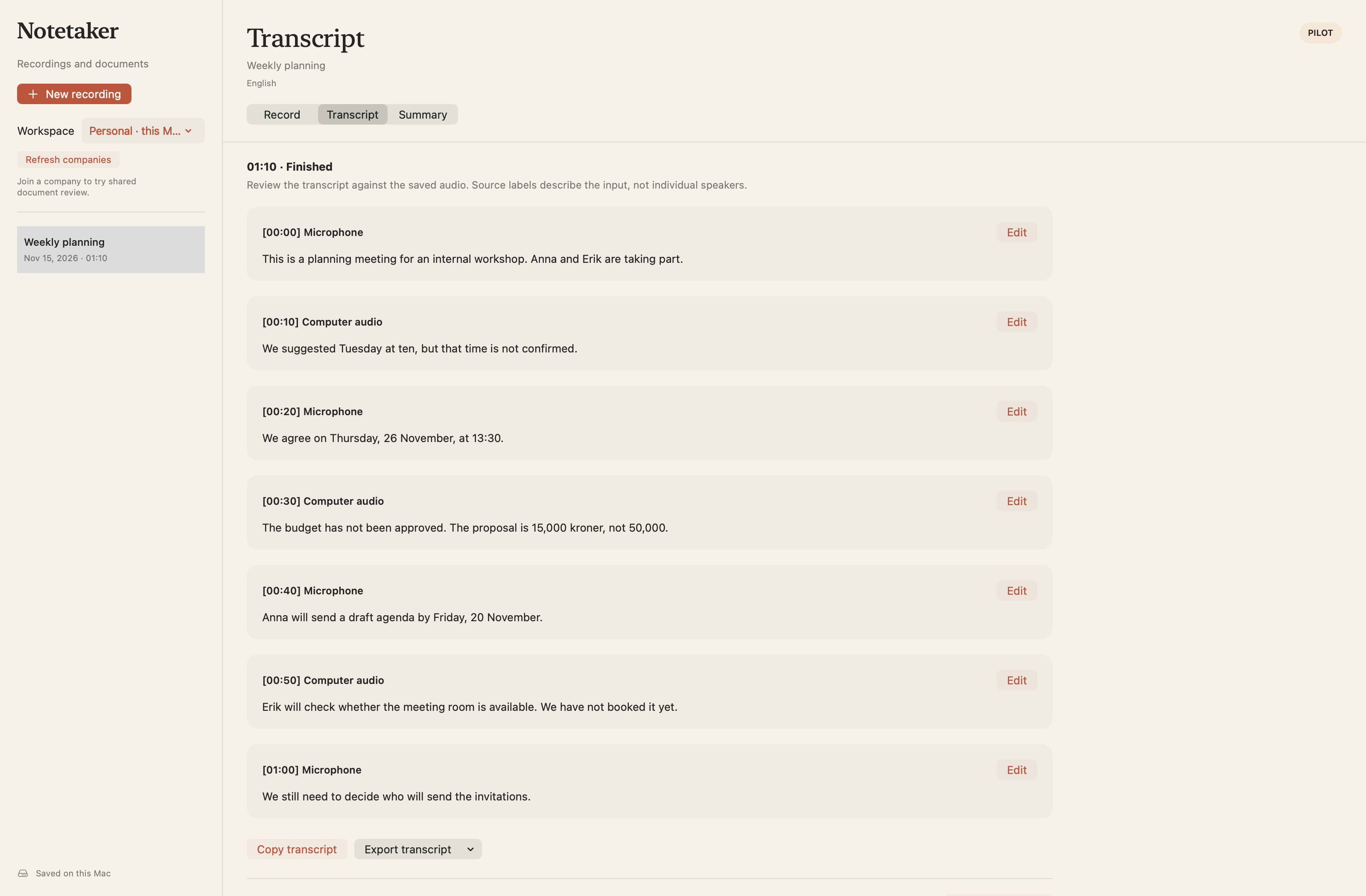
The personal transcript distinguishes Microphone and Computer audio sources. Those labels show where audio came from; they do not identify every participant. If three colleagues speak through the remote call, Computer audio is not proof of which colleague said a particular sentence.
Danish, Norwegian Bokmål, Swedish, Finnish, Icelandic and English are available as recording languages. Select the language that fits the conversation and review any language switches carefully. Cloud processing uses your account’s applicable allowances; the Teams trial currently permits up to five minutes per recording.
Review the words that change the meaning
Read the transcript while the discussion is still fresh. Use Listen to check passages that sound wrong or leave an important point uncertain. Correct the text before copying it into an email or another document.
For example, “Tuesday could work—actually, let’s confirm Thursday” needs review before Thursday becomes a firm deadline. A readable transcript is a useful starting point, not automatic evidence that every detail is correct.
- Names and roles: confirm the right person is associated with an action.
- Dates and amounts: check the final agreed value, including later corrections.
- Negation: “not approved” must not become “approved.”
- Decisions: distinguish a proposal, a commitment and an unresolved question.
Export your transcript, or use an enabled company pilot
Personal recordings support copying the transcript and exporting Text (.txt) or Markdown (.md). Use the checked text for your own meeting notes or follow-up, and save exported files only where your work permits.
The Summary stage, individual speaker labels and approved Word/PDF document export are currently available only in enabled company pilot workspaces. They are not included automatically with every account. In that pilot, ElevenLabs Scribe produces recording-specific speaker labels; you must check and, where needed, rename or reassign them. Summary generation is a separate action that shares transcript text with OpenAI. Review its source references, edit the draft and approve the current version before exporting an approved document.
Know where the recording goes
Personal recordings and transcripts remain on this Mac until you delete the meeting. The normal dictation-history setting does not delete Notetaker recordings. Company pilots sync audio to company storage when you stop, under the record’s access and expiry rules.
Current cloud processing uses global provider routes. Aivo does not promise EU/EEA-only processing or universal zero retention. Read the privacy policy and, for a company pilot, the separate pilot notice before sharing workplace audio. Deleting an Aivo record does not recall exported copies or override provider and backup retention.
Questions about this workflow
Does Aivo join my Zoom meeting as a bot?
No. This workflow captures permitted microphone and computer audio on your Mac. You start and stop recording manually and inform participants yourself.
Do personal accounts get speaker names and a Summary?
Personal transcripts show microphone and computer-audio sources and support Text/Markdown export. Individual speaker labels, Summary and approved Word/PDF export currently require an enabled company pilot workspace.
Sources and review
Reviewed 18 November 2026
This guide covers macOS audio capture alongside Zoom, rather than a native Zoom integration. No controlled Zoom-call test was run for this guide; check your own audio route before relying on it.